These instructions show you how to change the Inbox folder new messages are delivered to. This does not apply to IMAP or Exchange accounts (including Office 365 and Outlook.com) - those accounts always use their own Inbox and you need to use Rules to move messages to other folders.
Along with the Inbox, the default delivery location controls where new contacts and appointments are put.
When you create a new profile, Outlook creates a new pst for you. Because the default data file determines where new POP3 or Exchange messages will be delivered and where Outlook stores your calendar, contacts, tasks, notes, and journal items, you may want to use an existing PST instead.
Use this method, not File, Import, to use your old data when you get a new computer.
Note: In Outlook 2007 and older, reminders only fire on items stored in the default delivery file and the sharing features found in Exchange Server only work if the Exchange mailbox is the default delivery location.
Outlook 2007 and up
If you are using an existing PST, add it to your profile using the File, Open, Outlook Data File menu. The PST can be stored anywhere on your hard drive.
Outlook 2007: Go to Tools menu, Account Settings. In Outlook 2010 and newer: Go to File tab, Account Settings
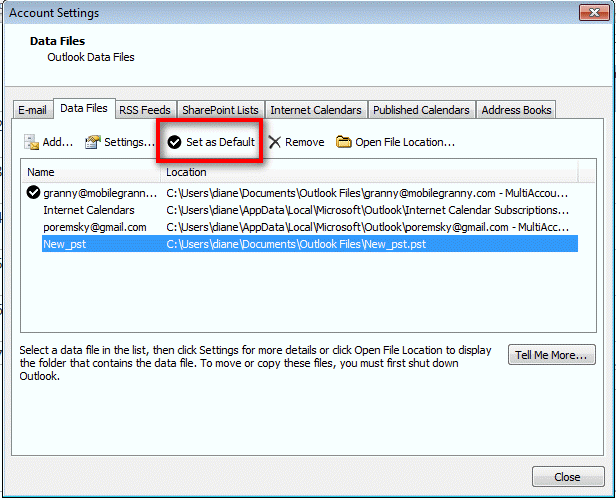
- Open the Account Settings dialog and select the Data Files tab.
- Select the PST file you want to use as default
- Click the Set as Default button

Outlook 2002/2003
If you are using an existing PST, add it to your profile using the File, Open, Outlook Data File menu. The PST can be stored anywhere on your hard drive.
From the Tools, Email Accounts menu, select View or change existing email accounts, then Next to open the Email Accounts dialog:
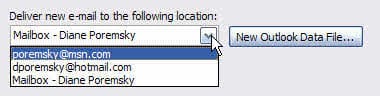
Select the dropdown menu below Deliver new email to the following location and select the data store you want to use. In this example, I have two Outlook Connector accounts and one Exchange server account to choose from.
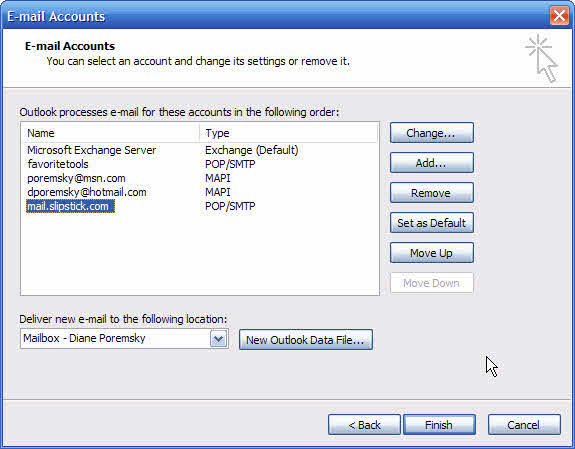
Select the file you wish to use and click Finish. You may need to restart Outlook for the changes to take effect.
Adding a Data File
If you need to create a new Outlook Data file or want to select an existing one that's not part of your profile, you'll need to click the Add button (Outlook 2007 and up) or New Outlook Data File button (Outlook 2002/2003).
In the first screen you may need to choose the type of file - depending on your version of Outlook, you will have one or two choices, Office Outlook personal folder format (for Outlook 2003 and up) or Outlook 97/2002 compatible format. Select the format (Outlook Personal Folder format is recommended unless you need to open it in Outlook 2002 or older, then choose the 97-2002 format) and click Ok to open the Create or Open Outlook Data File dialog.
- To create a new data file, enter a new filename and click Ok.
- To use an existing data file, browse to locate it and select it, then click Ok.
Enter a friendly display name for the data file and click Ok.
More Information
How to create a new profile (Outlook Tips)
Move a Personal Folders .pst file to a new location
How to move the IMAP personal folder (*.pst) - instructions for moving an IMAP or SharePoint PST files to a new location.

Alan says
Help, I have several files as subsets of my inbox. Somehow new emails are now coming into one of the subset files. How can I get back to the having new emails coming into the inbox. I have a Outlook 16, I think, with MS 10 operating system.
Alan says
Additional info, my email setup is Imap
Diane Poremsky says
Are you using Rules to move mail? With IMAP, outlook syncs mail to the same folder the message is online. If you move the mail, outlook puts it in the same folder that you moved it to.
Liz Schneider says
I moved Outlook.pst from a One-drive account (previous tech person set it up there) which is full but Outlook was working fine ... TO a folder on hard drive.
I set up a new Outlook profile to point to this existing data file in new location and the test send-receive worked successfully. HOWEVER, from that point on, Send-Receive shows error saying that the email address is not associated with a data file. Even though I went through Repair process and made sure that it IS associated with existing data file.
This is client computer issue, troubleshooting remotely and I won't have access til tomorrow morning. I am pulling my hair out. I've never encountered this much trouble with Outlook.
Diane Poremsky says
Go to File > Account Settings > Account Settings to open the Account Settings dialog. Select the account and click the Change folder button - select the inbox you want to use.
Alina says
When I go to Data Files I see: C:\Users\owner-pc\Desktop\OutlookBackup\backup.pst When I click on it I get the following: “The default Outlook Data File contains the calendar that appears in the To-Do Bar and settings for Accounts, shared folders and RSS feeds. It does not change where messages are saved.
Do you want to change the default Outlook Data File?”
What do I do? I have Outlook 2013
I just want to continue with my old Outlook after I got a new hard drive. Why is it so hard to set that up? I am so frustrated.
Thank you for all your help.
Diane Poremsky says
If you have an old data file that you used to use as the default, say ok/yes - your old settings are in the old data file.
Alina says
Thank you Diane. With some luck I was able to fix my issue. I am so happy!
Hell says
hi all, could you please help me out. . i have a query. whenever i set PST as a default my new mails are not getting in my pst folder. they automatically come into OST. so what sholud i do?
Henry says
Upon pressing the Set as Default button according to above steps for Outlook 2007, a warning box popped up saying "You can configure Outlook to save all e-mail messages locally on your computer. All e-mail messages are removed from the Microsoft Exchange and you can only access your messages on this computer."
Sheila says
Hi Diane, I am hoping this is the correct place to post my question.
I purchased Microsoft Office Professional Plus 2013 and am going to install and would like your advise before I install in regards to Outlook, using Windows 10. Currently I have Office 2007; however never setup Outlook but I do have my .pst file from Outlook 2003 and want to use it with Office 2013.
I believe the first step is to uninstall Office 2007. Then copy my pst file from office 2003 to my documents in 2013. I keep my .pst file in a separate area.
Install Office 2013 and I am assuming I skip the part about install Outlook, but not sure? Once the install is complete open outlook and setup my email account. What I am not sure about is how to connect the .pst file to Outlook since I keep the .pst in a different area?
Below is what I used when I went from 2003 to 2007 but I suspect things are different with 2013?
- Open outlook 2007 and setup my email
- Go to Tools>Options>Mail Setup.Data Files>Add
- Add the PST as my new default, then Close > OK to exit the Options dialog
- Go to Tools > E-mail Accounts > View or change existing e-mail accounts
- Select the PST I added in the "Deliver New e-mail to the following location" dropdown (it will most likely appear just below the current default Personal Folders file) > Finish
Diane Poremsky says
those are the same steps you can use with outlook 2013/2016. if your account supports both imap and pop3, outlook's autoaccount setup will set it up as imap, if you want pop3 you need to use the manual setup option.
philip says
Hi Diane
Outlook 2010: Original/primary mail account was p.simpson3 (a POP account). Subsequently added 3 other IMAP accounts which are working fine. Tried changing original account (p.simpson3) to IMAP and now can't send or receive using this account. After multiple account loading attempts now have a duplicity of data files and have got confused. I think the problem is that the original account is no longer accessing the correct data file. What I'd really like to do is be able to delete to original primary account (POP) and get the IMAP account working. Hope I have explained this correctly. Can you help? Thanks
Liam O\'Leary says
Hi - I have what I think is a similar problem and your advice would be most welcome.
My neighbour had a .tiscali.co.uk email account with her own email and a secondary account for her husband
Tiscali has now gone (I'm told) and he has a new email account which seems to be working fine but...
An attempt to associate the .pst with it (and this is visible on the screen - outlook 2010) but when I highlight this file, the set as default option greys out.
Is this because its a secondary account and the primary is still in place? Or am I missing something obvious?
My warmest thanks in advance.
Diane Poremsky says
No, the accounts still in place would only matter if the data file is already in the profile. Do you know if the old account was imap or pop? if it was imap, that would be why you can't set it as default.
Marcel says
My outlook 2007 is looking för datafiles on non existing/temporary location. e.g. L:/
This slows down the program (syncronizing folders for ages) and many times it gets stuck. I've removed this issue from data files tab several times but it keeps coming back. Why and what todo?
Diane Poremsky says
You may need to make a new profile. Do you know what data file it is - is it a backup you used once or for an account you used to have in Outlook?
Did you remove it from Control panel, mail or from the profile with outlook opened? it shouldn't matter, but I'd close outlook and try removing it from the control panel if you hadn't tried that yet.
one final thing to try before a new profile - close and restart outlook using the /cleanprofile switch.
Kay says
You guys are all a step or two (or 2,000) ahead of me on this one. I created a new Outlook data file (called "NEW"). Sure enough, it became my default data file, and this allowed me to delete the iCloud data file I wanted to get rid of. But now, I have the same problem--
I want my default data file to be my actual email (the one valid file remaining).
Help!
Kay
Diane Poremsky says
Only POP3 can use a pst (and share it with other accounts). If you use IMAP, Exchange, or Outlook.com, those accounts will have their own data file and you can't change it.
leeroy says
Diane Poremsky or anybody who can assist.
How can I change the data file location in Outlook 2013 configured with POP3 account.
I have configured the mail account which is working fine. But I already have a PST file in a separate location or folder, and I want Outlook 2013 to use that particular PST file.
Previous Outlook 2003, you can deleted the default pst file, and upon opening Outlook, it says unable to locate file, and after click OK, it gives you the options to select and open the desired pst file and location. If you perform this in Outlook 2013, it returns back to the default pst and location.
Please help. Thank you
Leeroy says
Diane Poremsky or anybody who can assist.
How can I change the data file location in Outlook 2013 configured with POP3 account.
I have configured the mail account which is working fine. But I already have a PST file in a separate location or folder, and I want Outlook 2013 to use that particular PST file.
Previous Outlook 2003, you can deleted the default pst file, and upon opening Outlook, it says unable to locate file, and after click OK, it gives you the options to select and open the desired pst file and location. If you perform this in Outlook 2013, it returns back to the default pst and location.
Please help. Thank you
Leeroy
Navneet says
Diane, When I click on File --> Account Setting --> data Files --> Add button. I see "New outlook data file" dialog box open but I can not do anything on this dialog box. It is not allowing me to add any pst file I had from past archive. Appreciate your suggestions.
biz@tmfs.com says
Found it - in Outlook File > Account Settings > Account Settings > Data Files
Just delete my initial comment.
Note: the two fields below this text box are not labeled - no idea what was to go there, but something was requried.
biz@tmfs.com says
Almost what I needed.... We're only using POP accounts. I've repurposed a PC and the email associated with the prior defult account is no longer applicable. Neither are the contacts, etc. We have all the new stuff in a different file (we think) but I'd like to delete the pst file that we don't want. How do we tell Outlook 2010 to put default contacts, calendar, etc. in a different pst file?
david slight says
Diane, when you said "for the active sync account",
did you mean "for an account using Exchange Active Sync"
And assume that is any account using Exchange Active Sync?
Diane Poremsky says
It would be for an account configured in outlook as an active sync account - the only account that supports this is outlook.com aka Hotmail. You can't turn off cached mode on the Hotmail account, only on Exchange mailboxes.
Do you have an Exchange account in your profile and you want Hotmail to be the default? See
https://www.slipstick.com/outlook/change-the-default-data-file-from-exchange-to-another-account/
David says
I have tried, honest. I have a Hotmail account which I want to set as the Default Data File. It is already the default E-mail and uses Exchange Active Sync. The file extension is OST but Outlook recognizes it as PST format and says:
The selected Outlook data file (.pst) format cannot be used. [OK]
Outlook data files (.pst) must use the same format as offline Outlook data files (.ost) [OK]
Select a matching Outlook data file (.pst) OR turn off cache mode in the Account Settings.
This makes sense ... but I cannot see anyway to turn off cached mode - the Offline settings range from 1 month to All.
Diane Poremsky says
You can't turn off cached mode for the active sync account, only regular Exchange accounts.
Dave says
HI all
You may want to look at this post from Microsoft ...
"You cannot change the location of the offline Outlook Data File (.ost) in Microsoft Outlook 2013"
https://support.microsoft.com/en-us/kb/2752583
i am having a lot of pain .. even following this with Outlook 2013 .
The first account seem to work this way but one you exit out, it saves it back in the Microsoft default folder again for all subsequent mailboxes added to the profile !!
Diane Poremsky says
I had an article about moving the ost long before microsoft added their KB article - https://www.slipstick.com/exchange/moving-outlook-ost-file/
Did you set the forceostpath key? That has always worked for me.
Daniel Vasconcelos Ferreira says
Dear Diane,
Has one code to do this automatilly?
with script?
Thanks for help.
Diane Poremsky says
I don't have any scripts to change the default data file - because it's part of the profile, it's normally set using a prf file, not a script. The script would need to get the profile name and properly update the registry - using a prf is easier. :)
Daniel Vasconcelos Ferreira says
Hun..i really think that was it, but i'm trying to do it, but i can't..
I Think that the update on registry happen here.
[HKEY_CURRENT_USER\Software\Microsoft\Office\14.0\Outlook\search\]
I know that this code bellow, change the place received email..
Windows Registry Editor Version 5.00
[HKEY_CURRENT_USER\Software\Microsoft\Office\14.0\Outlook\Options\Mail]
"NewItemsUseDefaultSendingAccount"=dword:1
but i need to change the Default Data File, like you instructive.
but here has path pst that I have on my outlook..
Can you help me with it?
If u can..of corse!
AdrianRo says
Hi Diane.
We are migrating from a classic POP/SMTP/IMAP email server to Exchange server.
I need a script (VBS is OK) to set the Exchange Data File as default. I intend to use this script in a GPO to run it when users will log on. I can't find anywhere how that script must be written.
Do you have any suggestion?
Thank you.
Adrian Ilias
Diane Poremsky says
You'd need to use a PRF file for this, although if you have Outlook 2013, Exchange data file should be set as default automatically.
Aaron says
The "Change Folder" button us missing in the "E-mail" tab under Account Settings. So, i cannot change the folder of my .pst files. I find this discouraging. Can you shed some light on as to why it is missing, and/or how to get it to show up (not even gray-ed out icon - just missing)?
Thanks, -Aaron
Diane Poremsky says
that is only available foe pop3 accounts. imap, exchange, and outlook.com need to use their own folders.
jay says
Diane -- many thanks...not only for this reply, but to the many others that I have learned from. Your expertise is much appreciated. It was the 2-way sync issue.
Jay
jay says
Diane,
Hi, I hope you can shed some light on a sync issue between Outlook (2010 -32 bit) and iPhone (4, iOS 7). There are a couple of issues. First, using iTunes as the sync mechanism, data (contacts, calendar, etc) transfers to the iphone, but not from the iphone to Outlook. I've read numerous forums, applying what I read but to no avail. I'm thinking the issue may be related to the default outlook pst is connected to an earthlink account (old school). Is it worth setting up the outlook pst to one of my gmail accounts? How best should I do that?
The second issue relates to icloud. I tried icloud, but I lost the ability to sort contacts by categories and it wiped out my contact distribution lists. I moved the data back from the icloud contacts, calendars, etc, and removed icloud. I understand there are a number of sync issues with outlook and icloud.... Is there anyway to restore my distribution lists?
Many thanks.
Jay
Diane Poremsky says
I don't think the problem is the old earthlink account. Do you have it set to sync 2 way? If yes, can you find the appointments on any calendar in Outlook?
If the contact groups were wiped out and you don't have a backup copy of the pst that has them in it, no, you can't restore them, you'll need to recreate them. Sorry.
Sherri says
Hi Diane. My att.net account has been closed for over 2 years-yet Outlook lists it as my Default email address. I just read your earlier response about how IMAP emails cannot be default emails, which is what my new gmail.com email is. But since I no longer have access to att.net, how do I get rid of it in Outlook?
Diane Poremsky says
Is it in outlook as a pop3 or imap account? Do you need to keep copies of the messages in the account? If its POP3, you can remove the account but not the data file from the profile. In Outlook 2010 or 2013, go to File, Account Settings, Email tab and remove the account. The data file will stay in the profile and might be listed in the navigation pane as "alias@att.net". That is just the display name and can be changed.
If its IMAP and you need a copy of the messages, export the data file to a pst file then remove the account from your profile.
thiet ke logo says
i use outlook express before and easy to change data file location, but i am new to microsoft outlook 2007 and not easy to change data file location. Now i can do it after reading this post. Many thanks
Joe says
Hello Diane: I have two calendars setup in my outlook. One is the default and the other is linked to outlook.com connector. The one that shows up in my outlook today I would like to change to show outlook.com connector calendar. Is there a way to do this?
THANK YOU JOE
Diane Poremsky says
Outlook today shows the default calendar - you'll need to set the outlook connector data file as default (not account, just the data file).
Oded Miller says
Hello Diane. Your clarification that "IMAP data files cannot be set as default." was very helpful and led to a constructive resolution of my problem.
Best regards
Oded
Nabeel Kamal says
Thank you for your assistance, but my problem was not solvable. When I click on outlook, it tells me cannot open my default email folder; File access denied. I am the only one using that computer and it keeps telling me that I do not have permission. I deleted and re-installed “Outlook" but with no luck.
I cannot open or get any email.
Please help if you can. Thank you & have a blessed afternoon.
Diane Poremsky says
Did you reboot? Run scanpst on the file?
bparmar says
How to simplyfy outlook data management files, as when you open reading pane, it will show same folders three time below one and other, it is very confusing though very simple. could you please help , using outlook 2010 windows7
Diane Poremsky says
How many accounts do you use?
In the folder list (Ctrl+6), can you right click on the extra data files and close?
Al says
I was getting an error :
Task ‘Microsoft Exchange Server’ reported error (0x8004010F) : ‘The operation failed. An object could not be found.’
error and searched the web for a solution to why this was happening so I tried the following:
“Another way to solve this problem is :
In Outlook 2010, Go to the File Tab and click on Account Settings
Click on the account you are having issues with and click on the “Change Folder” button at the bottom
Pick Personal Folders\Inbox and hit OK. Click Send/Receive all.”
It didn't work and and now my OWA cannot see any personal files. How can I change it back to storing them on Exchange?
Diane Poremsky says
Did you set it back to use Exchange?
Go to the File Tab and click on Account Settings
Click on the Exchange account
Click on the “Change Folder” button at the bottom
Pick your exchange account Inbox and hit OK.
If you have mail in the personal folders that needs to be in Exchange, drag it between folders.
If you continue to get the error, you'll need to make a new profile.
rob says
Many thanks again. I am certainly not an expert user at this stuff, but what I've read on that link is pretty cool. Wonder if they added the autonumber feature back into Access?
will go on my clubs laptop tonight and download that trial.
Rob says
Thanks for the reply, so you're saying the upgrade to 2013 would be worth it, even if just to get rid of the useless folders and data file. It really is just an annoyance, and that's all, to see the entire list of folders under that data file in the email tab, but it's one of those things that just drives me batty.
Diane Poremsky says
Only you can decide if its worth it, but yes, if you do, you'll have one set of folders. There is a trial available - you can get it from here http://slipstick.me/tryoffice365
rob says
Wjy cannot IMAP data files be designated as the default? When I open Outlook I end up with a mail profile that I cannot delete, close or otherwise remove in the side pane. This "Outlook Data File" does nothing. nothing at all. But it is the only one that opens all the way when Outlook first opens, no email messages will ever go there, no calendar appointments, nothing. I just want to get rid of it.
Diane Poremsky says
The Outlook data data file holds your calendar and contacts because the IMAP servers don't support Outlook's special folders. Outlook also needs to data file for the Outbox.
Diane Poremsky says
BTW, Outlook 2013 changes how IMAP account's offline messages are handled - because it uses an ost, not a pst, calendar and contacts can be stored in the data file and you only need one data file in the profile. However, because the ost is tied to the account that created it, you are at greater risk of losing your calendar and contacts by removing the account without first exporting them for backup. Recovery requires an expensive program.
janvanswigchum says
My computer is instable at the moment, so when it shuts off, mywork is saved in the concept-map.
How can I restart my document (without using copy)?
ejp says
ok, thanks. :-( Is there a short-cut way to repopulate without manually typing in full addr and sending emails to people? It seems not to want to communicate with contacts list. When I click TO: in compose mode, there are no names in the field in box that pops up even though "contacts" appears in upper right box. I have original fully populated contacts folder from before appearing in left pane when in regular mail/send mode.
When I do this on tower PC with Outlook 2010, I see my full contacts list with all names present.
Diane Poremsky says
If there are no names in the address book when you click To, see Contacts are missing when you click the To button.
Short version: If you have Contacts in the Contacts folder but they are not accessible when you click on the To button, check these settings: Make sure the Contact folder is enabled as an email address book. Right click the Contacts folder, choose Properties then Outlook Address Book. Is the box to enable as email address book is checked? If this is grayed out in 2007/2010 you'll need to make a new profile as you can't add the Outlook Address Book.
ejp says
forgot to mention, it's outlook 2003 on Win7.
ejp says
ok, hopefully one last thing.
How do I get it to use my old .NK2 file? I went to the "roaming" path and renamed the new blank .NK2 it created to a junk name and remamed my good one to match the new profile name, and on running Outlook and doing 1 email, it went ahead and created an identically named .NK2 again with the one new entry. thought I had the .NK2 figure out but guess not. What gives?
Diane Poremsky says
It sounds like you did it right - the NK2 can be fragile at times. Repopulating it might be a better option. Add all of your contacts to a new message and close the message without sending. The address should be on the NK2. Note there is a limit of 1000 addresses on the NK2.
ejp says
I got it working thanks. Followed your instr above --> File->Open....select desired data file.
I now have 2 Personal Folders but will delete wrong one once it's established all cared-about new email is in the main/original .pst (did cut/paste).
Thanks!
Diane Poremsky says
Cool. Now lets hope AT&T straightens up and it keeps on working. :)
ejp says
Diane, I created a new profile to fix the never-ending, infinite loop p/w pop-up problem (other forum) and of course it created a new .pst file, into which all the ATT/Yahoo email flowed down to from their server (Yahoo!,, Yippie, etc.). However, when I open the E-mail Accounts dialog box you describe above, I only have the options for CHANGE, ADD, REMOVE and no SET AS DEFAULT or MOVE UP. What gives? I have seen and done what you describe in years past but don't recall seeing those key buttons missing. The old/original .pst is in the list of 2 entries, and following the path, it is the right one as it's huge as it should be and the new one is tiny. How the heck to I point Outlook 2003 to the old .pst file without those key dialog box buttons.
Thanks again for your solid support!
Diane Poremsky says
You don't have the New data file button on the bottom of the dialog? You can select existing data files using the New button (dumb huh?) or close that dialog and use the File, Data file Management dialog.
Let us know if the new profile fixes the problem.
orgu says
I have removed my POP3 account but I cannot remove the data file (which is set as default)? Any suggestions how to do?
Diane Poremsky says
You need to add another data file and set it as default - click on the ADd button in Account Settings and either select an existing pst file or type in a name for a new one.
M Isaac says
Tried to reassign the default data file in Outlook 2010.. The "set as Default" command is grayed out when I click on any other file.
Help?
Diane Poremsky says
What type of email account do you use and what where you trying to set as default?
IMAP data files cannot be set as default. icloud cannot be default. Exchange mailbox can, but not when the account is first created. (close the dialog and reopen it) All other pst files can be set as default.