Outlook 2003 introduces the first major change in the user interface since Outlook 97. Microsoft's design goal was to make it easier for new users to find key features and for all users to spend less time doing mail management chores.
New Interface | Shortcuts | Recovering the Classic Interface | My Calendars/My Contacts | Technical Details | Tips | Notes | More Information
New Interface
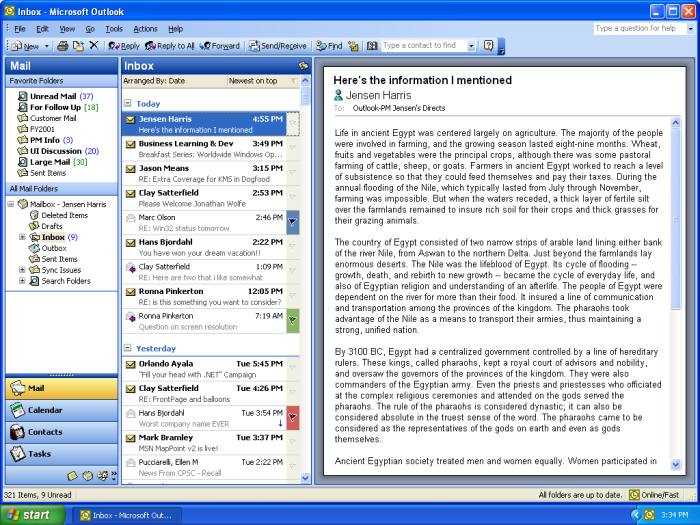 The large "reading pane" on the right replaces the preview pane with text that has been enhanced with Microsoft's ClearType subpixel rendering. Users can also place the Reading Pane on the bottom, but in the vertical position shown here, it can display up to 40% more text.
The middle pane shows an grouping of mail by Today, Yesterday, etc., much as Internet Explorer shows your web browsing history. A single-click in the right margin flags a message for follow-up. Users who prefer the keyboard can use the Insert key instead of a click.
The left column is a context-sensitive navigation pane. It will show different navigation and other tools depending on whether you are working in a mail, calendar, contacts, etc. folder. Users can rearrange the Favorite Folders list at the top to add or remove a folder and list the folders in any desired order. When a user first opens Outlook, the Favorite Folders list shows Inbox, Unread Mail, For Follow Up, and Sent Items,
Shortcuts
The Outlook Bar from previous versions migrates in Outlook 2003 to a Shortcuts list that you can launch using the Shortcuts button  at the bottom of the navigation pane.
In Outlook 2003, you cannot display both the Folder List and the Shortcuts list. See below for information on how to make Outlook open with the Shortcuts list displayed.
Recovering the Classic Interface
Not everyone is going to like the new interface, although we urge you to try it for a couple of weeks before going back to the old look. If you decide to revert, see Configuring the "classic" interface in Outlook 2003 for details on how to modify the view that Outlook uses by default for message folders.
In addition, you can set Outlook to start with either the Folder List or the Shortcuts list displayed instead of the Mail folders. This option requires editing the Windows registry; make a backup of the registry beforehand. Go to the key
HKEY_CURRENT_USER\Software\Microsoft\Office\11.0\Outlook\Options\WunderBar
DWORD: BootModule
Value: 0, 5, or 6
change the value of the BootModule entry. These are the known valid entries:
| Value | Description |
|---|---|
| 0 | Start with Mail folders displayed |
| 5 | Start with Folder List displayed |
| 6 | Start with Shortcuts list displayed |
WunderBar was the working name for the Outlook navigation pane during the Office 2003 beta.
My Calendars / My Contacts
To add Exchange public folders to the list of My Calendars and My Contacts:
- Display the Folder List.
- Right-click the folder, and choose Add to My Calendars/Contacts.
The same techniques should also work in the Tasks, Journal, and Notes sections.
Technical Details
The navigation pane settings are profile-specific and are stored in an .xml file with the profile name, in the Application Data\Outlook folder.
To clear all navigation pane customizations, start Outlook once with the /resetnavpane switch.
Tips
- Two ways to see the size of messages
- OutlookTips' Step-by-Step to Disable Group Views
Notes
There is no programmatic mechanism for manipulating the new features navigation pane, short of editing the .xml file when Outlook is not running. However, the OutlookBarPane, OutlookBarGroup, and OutlookBarShortcuts objects still control what is now the Shortcuts list (formerly the Outlook Bar).
More Information
- Support WebCast- Productivity Innovations in Microsoft Outlook 2003

Patty Trout says
Where do I get Internt Option? Where do I configure my email accounts?
Diane Poremsky says
Internet Options is in the Control panel.
You can configure Accounts one of two ways: by going to Control panel and searching for Mail and editing your profile or creating a new one. Or. if you have a profile, go to Tools, Accounts, view or change accounts dialog. If you need screenshots, we step by step and screenshots at Create a new outlook 2002 or outlook 2003 profile