A frequent question in Outlook forums asks how to fix Outlook so that messages aren't double spaced for the recipient. This effect is caused by the HTML coding and is most frequent for recipients using a web-based email client, such as GMail. This is because of the way Outlook creates line breaks in HTML and how browsers or other clients interpret them. In some cases, the message is correctly spaced when received and only double spaced when replied to.
Note: This is not a problem new to Outlook 2007, it was also a problem with older versions when using Word as the editor. It is more noticeable because there is only one editor: Word, and it's the reason there is a problem with spacing.
Cause | Solutions | Edit the Template
Cause
When you press Enter while creating HTML email, Outlook inserts a paragraph tag (<p>), so two Enters (for white space between the paragraphs) inserts two <p> tags, which is double spaced when rendered in a browser. If you use Shift+Enter twice, which creates the line break tag (<br>), the message will not look double spaced in a browser. This will look ok in all mail clients.
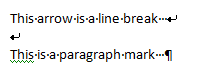
To see if you are using the <p> or <br> tag when composing messages, press Ctrl+Shift+8 to toggle marks off and on.
Solutions
You have 7 options:
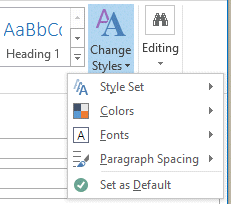
- Use the +Body style and set the paragraph spacing on the Format Text ribbon > Change Styles > Paragraph Spacing command. Set as Default after changing the spacing.
- Use plain text for messages. Plain text will look ok in any and every email client available.
- Press Enter once, not twice, when composing HTML formatted email.
- Press Shift+Enter twice at the end of a paragraph, rather than pressing Enter twice.
- Just ignore it as an inconstancy in the way various applications handle HTML.
- Edit the email template to add '12 points after' in the Normal style.
- Use Search and Replace to replace paragraph symbols (^p) with a manual line break(^l)
Eighth option from Dave: Use AutoHotKey and this script.
My preference is to ignore it in messages - email is an imperfect medium and most people are used to inconsistencies such as this. I'm more concerned about the content of the messages I receive, not with how they look. (Newsletters and other bulk mail should be sent using a bulk mail application, not Outlook, and would not be affected by this.)
I often use Shift+Enter when I compose messages for my newsletters or edit the p style in my CSS to add 12 points bottom margin (margin-bottom:12.0pt;).
Change the paragraph spacing
There are two ways to change the paragraph spacing: by changing the Normal style or changing email defaults. I recommend changing the email default settings but either method works.
Change the default Body setting:
- Create a new Email Message, put your cursor in the body area
- Switch to Format Text tab
- Expand Change Styles button
- Select Paragraph Spacing command and select No spacing.
- Expand the Change Styles button again and choose Set as Default
Change the Normal style:
- Create a new Email Message, put your cursor in the body area
- Switch to Format Text tab
- Right-click on the "Normal" Style
- Click Modify
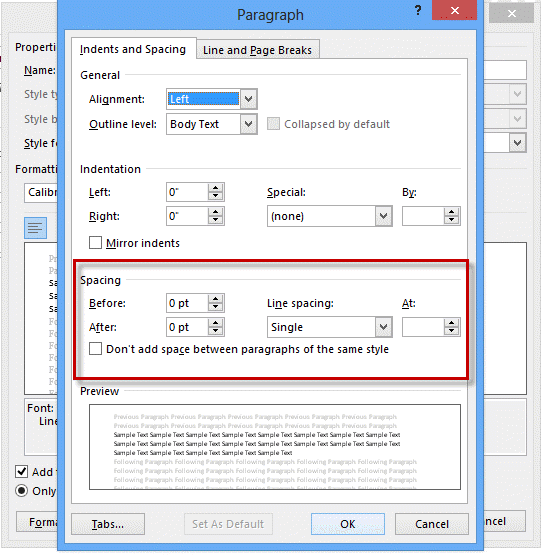
- Click Format (in the bottom left)
- Click Paragraph
- On the Indents and Spacing Tab, in the Spacing section, turn ON Don't add space between paragraphs of the same style. Line spacing should be set to single and 0.
- Click OK once
- While still in the Modify Style window, click the radio button for "New documents based on this template" (near the bottom left)
- Click OK and return to Outlook.
- Close the message without sending.
Use Search & Replace
This suggestion comes from Jim: Do a "replace all" on "caret p" with "caret l".
This works best when the message contains only plain paragraphs - bulleted or numbered lists and other formatting require paragraphs, not line breaks.
Use Search and Replace to replace the paragraph with a manual line break.
- Press Ctrl+H to open the search and replace dialog
- Type ^p in the Find field
- Type ^l in the Replace field (that's lower case L)
- Replace all (Use Replace and Find Next if using formatting that requires paragraphs)
If you press Ctrl+Shift+8 to show formatting marks, you'll see the paragraph marks ( ¶ ) are replaced with manual line breaks ( 8 ). Press Ctrl+Shift+8 to toggle the marks off.
Edit the Template
In Outlook 2007:
Close Outlook. (If you get a message that the template is read only, Outlook is not closed.) Locate NormalEmail.dotm and open it for editing. You'll find it in the templates folder at C:\Users\username\AppData\Roaming\Microsoft\Templates (Vista), To easily access this folder in Windows XP or Vista, paste
%appdata%\Microsoft\Templates\
in the Start search dialog (Vista) or the address bar of Windows Explorer.
- Right click on NormalEmail.dotm and choose Open. This will open the template in Word as a template.
- Right click on the Normal style button in the ribbon and chose Modify.
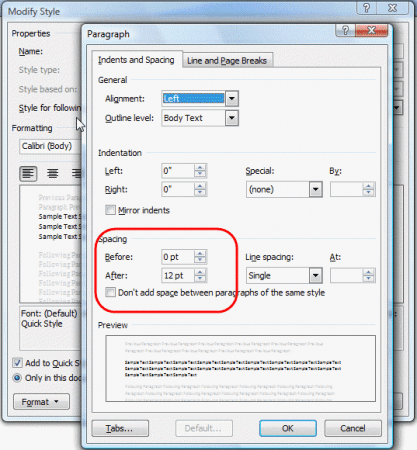
- Click Format in the lower left and choose Paragraph.
- In the Spacing section, change the After value to 12 points.
- Save and close the template.
Now when you write a new message you'll press enter once and have white space when recipients read the message in any client or web browser. Replies will use the style sheet of the original message.
User Submitted Solutions
These solutions were made by other users:
Dump the stationery, or at least try a different stationery. This is not an cure-all, and changing the style settings of the preferred stationery should have the same effect for default stationery. To change the style setting, click the Change Styles button on the Format Text tab then change the Paragraph spacing, then set it as default.
Another user discovered using RTF message format also eliminates double spacing. I really don't recommend using RTF formatting, even if you do set Outlook to always convert RTF to HTML for Internet addresses, but if double spacing really bothers someone its worth a try.

Edgar K says
Building on solution No. 7, there is a nice script from user Mar_50 on learn.microsoft.com that fixed it for me. If you run into any compile errors, check that "Microsoft Word 16.0 Object Library" is selected as an available reference under Tools->References in the VBA editor.
Dennis says
Found an incredibly easy solution... Rich Text.
After several days of pulling my hair out, I tested many different ways and methods. Changing to Rich Text resolved the problem.
try it and see...
Diane Poremsky says
I don't recommend doing that - only outlook can decipher rich text and the message will either be displayed as plain text (with a winmail.dat attachment) or converted to HTML.
John says
Well, Ive done everything and my emails still come up with large par spaces in gmail and protonmail. Using Outlook 2010
Karen Doty says
Thanks for the autohotkey script. I was already using autohotkey so I used it. Works great except you need to close it with another '#IfWinActive' (w/o a parameter) or else any command after it in your script won't work anywhere except in an outlook message window.
Curls says
Thank you! The ^p to ^l fixed it for me. I'm moving Word to Thunderbird. I can't stand huge double spaces all through a meeting mins. It makes it much harder to read such an already long document.
Jan says
Interesting read, thank you very much.
The double blank lines are/were very annoying, I'm glad there are ways to avoid it.
The only thing that really works for me is using Shift+Enter instead of Enter; in my testing this seems to work.
Setting the +body style isn't possible in the version I'm using. I'm on a Mac with Outlook 365, that Styles option isn't there.
What I did find was that right-clicking when in the body of the mail and then clicking on Paragraph (or using Command+Option+M) opens a similar window to the one you displayed when editing normal style.
I'm not sure though if it is broken or simply doesn't work on the Mac version. As of today (July 29th 2020) I can turn on Don't add space between paragraphs of the same style, but when I click on Set as default it doesn't save. Simply clicking OK after turning it on seems to save it.
But it still does the double line.
If I click Enter two times but then add a Space (empty character) in the empty line, it renders as no line in Outlook but as one line on HTML. Very weird.
There are probably more weird outcomes, but it takes some time to test stuff, so I won't dig deeper.
I guess I just have to get used to clicking Shift+Enter twice, but since that it usually the way in other programs and websites, it shouldn't take too long.
Maybe I'll even find a working way to change Outlooks behaviour, so I can simply use Enter.
Thanks again, have a great day!
Frank says
File> Options> Mail> Compose Messages> Rich Text was the only solution for me.
Patrick McLaughlin says
Thank you for the advice on how to eliminate double spacing in Outlook. Inconsistency between spaces in different email programs in Outlook was a nuisance.
Alan Wilson says
Hi Diane where located in Australia and have tried fixing double spacing issues on emails, have spent days trying to resolve this issue, are you able to recommend someone who could fix problem online?
Nietzche says
No one has addressed (one person asked about it) what is surely the more important/frustrating issue: double spacing on emails that are RECEIVED from OTHER USERS! I probably receive emails from about 30 people per day on average, and about half of those emails cause double spacing on MY AND THEIR PREVIOUS MESSAGE THREAD TEXT. Any solution to this?
TIA for any help anyone can offer!
Diane Poremsky says
It's the same problem, you're just the recipient and may be stuck with it if it's originating with the sender. There might be some things you can do to mitigate it a little, but it's probably not going to go away completely.
Are you using outlook on the desktop or reading mail in a web browser? What version of Outlook?
Do you know what client the senders use?
Jaume says
Thanks a lot for this deep explanation with good solutions for this particularly annoying issue.
Tony caya says
Hello guys,
My problem is this. All my inbox messages are double space if its in plain text format and since its plain format, i cannot do anything for the paragraph because there are no option or settings for it. If it is HTML well its ok you can do something about it in paragraph option.
So here is what happened.
You could try this option..
I called a customer representative and advised me tons of information and it didnt work out until the last one..
Search in google "how to reset option and registry setting in word". You will be direted to many sights but choose the one with "support.microsoft". Then scroll down and you will find two download button. Select depending on your OS. And after download click Run. And wiindows will run in automatically for you.. After that close it. And restart your computer. Once its done open your outlook again and will be single space.. It really feels good tha i solve this simple issue but really disturbing.
The reason you will reset option for Word is because Outlook uses the Word for messages and they are linked..
Steve Simon says
Never download or blindly run anything from the Internet! What is this 1998? Sounds like instructions to ruin your computer. Surprised moderators even allowed this post from "Tony caya"
Diane Poremsky says
While it would have been better if he included the link, he said to use the one from support.microsoft - which would be this one now: https://docs.microsoft.com/en-us/office/troubleshoot/word/reset-options-and-settings-in-word - the download link for the easy fix is near the top.
FWIW we allow any comments that are not spam or a personal attack on me (I get a couple each year) - tirades against Microsoft are ok. Naughty words may be edited out...
Simon M. says
I am not following: the problem is that 1 ENTER () is reproduced as 2 lines in HTML.
Why do you say: " Outlook inserts a paragraph tag (), so two Enters (for white space between the paragraphs) inserts two tags, which is double spaced when rendered in a browser. " It sounds like you are saying this only happens when you press ENTER twice. Can you please elaborate ? Thank you.
Diane Poremsky says
When you press Enter in Outlook, it converts the Enter to a %lt;p> tag. This is HTML for paragraph. If you, like many of us, press enter twice, it creates two p tags which results in an blank paragraph, especially in web clients.
Shift+Enter = a line break in HTML (<br /> tag), which results in a new line. Two of these will leave a single blank line between two paragraphs.
The raw html code looks like this.
<p>This is a paragraph</p>
<p>One Enter = 1 line between </p>
<p> </p>
<p>2 enters = 2 lines<br>Shift+Enter = line break<br>another
line break</p>
and converts to this:
This is a paragraph
One Enter = 1 line between
2 enters = 2 lines
Shift+Enter = line break
another line break
Pathik Shah says
Only Find and Replace is working for me. I'm also facing weird issues now. The spacing is perfect when I view it on the outlook app but double spaced when I view in on outlook.com
Does anyone have a better solution?
Sandeep Yadav says
i am using microsoft office 2007. I can not see Bcc address in my sent message pls help me.
Diane Poremsky says
See https://www.slipstick.com/outlook/email/view-the-bcc-field-on-sent-messages/ for information and troubleshooting.
Cresia Nomed says
Greetings,
I have the same problem for long time and one friend help me with that. I tryed with many settings but nothing work. My friend told me to instal new font Calibri and everithing was fixed after that. I noticed that in my windos i have the fond Calibri Light but its not work with it. You dont need to edin setings after that. Just instal that font, restart the PC and open your email. It work for old emails too. You can get that font from Microsoft internet site to be sure its not corrupted.
Mary Schuller says
Since this page comes up so often when I search for a double space solution for Outlook, I wanted to paste a solution that solved the problem for me here. It is Cliff's virtual basic script with directions and the link is https://answers.microsoft.com/en-us/office/forum/officeversion_other-outlook/outlook-double-spacing-problem/b3120ff6-e78e-4299-b483-aaf1a800516d?page=2
I tried every other solution suggested without success for my Outlook 2010, Win 7.
Mary
Jan says
Thank you for the link. Someone also suggested turning off the stationery to remove the two lines, I assume that's similar to editing the normal style.
Unfortunately that doesn't work on Mac, but maybe a Windows user sees this.
Boyd Murray says
Thanks Diane! What is the general method for doing a macro? Ideally, I would like the macro to run whenever I hit the email 'Send' button.
Diane Poremsky says
To catch mail as its sent would require an ItemSend macro -
Private Sub Application_ItemSend(ByVal Item As Object, Cancel As Boolean)
' do whatever
end if
all that is left is to add the code to make the change. Basics of using a word macro in outlook are here - https://www.slipstick.com/developer/word-macro-apply-formatting-outlook-email/
Boyd Murray says
The only one of the solutions discussed above which worked for me was: Do a "replace all" on "caret p" with "caret l".
I tried automating this with: Outlook 2010> Open Email > Click in Body > File > Options > Spelling & Autocorrect > Autocorrect Options > Replace ^p with ^l. This didn’t work - ^l was just interpreted as the 2 characters “^” and “p”. I also tried entering Alt-codes but that didn’t work either.
Does anyone have any suggestions as to how replacing "caret p" with "caret l" can be done automatically?
Diane Poremsky says
I think you'll need to use a macro before sending.
Joe K says
The issue that I am having is that some replies start with "Multiple Line Spacing" at 1.15 with 10 points after. I have changed the spacing to single and 0 points before and after, checked the "Don't add space between paragraphs of the same style" then set as default for all documents based on the NormalEmail template. I have also set the text format to Rich Text under the File: Options: Mail: Compose Messages in this Format. Certain replies still start with the multiple spacing and 10 points after. I can change it in the reply to single spacing but it is incredibly annoying to have to do it each time. The default settings don't change but the reply still starts with the spacing enabled. They style is also different on the replies that have the extra spacing. I use the Normal style exclusively, and again I can modify it and set it to use the same for new documents based on this template. The troublesome replies start with the default style however the font, font size, and spacing are all goobered up.
If anyone has a solution or any ideas I would appreciate them, while this is a minor issue in the grand scheme of things it is getting VERY IRRITATING!!!!
Diane Poremsky says
part of the problem could be that outlook uses the same format as the original and may be picking up the format from it.
Jay says
Diane
Thanks for the useful post. My e-mails appear double spaced for recipient (who uses gmail) and couldn't be solved by the above (problem is that others create docs in Word, I or others review through track changes, and edited in Word and then copied and pasted into Outlook 2007).
I was trying to get everyone to change the default template in Word, but sometimes the original file originates from outside the office and nothing seemed to work.
After reading this post I googled, then found, and then altered someone's VBA script as per below:
--
Sub ReplaceMLBwithPM()
Selection.Find.ClearFormatting
Selection.Find.Replacement.ClearFormatting
With Selection.Find
.Text = "^p"
.Replacement.Text = "^l"
.Forward = True
.Wrap = wdFindContinue
.Format = False
.MatchCase = False
.MatchWholeWord = False
.MatchByte = False
.MatchAllWordForms = False
.MatchSoundsLike = False
.MatchWildcards = False
.MatchFuzzy = False
End With
Selection.Find.Execute Replace:=wdReplaceAll
End Sub
--
Then I assigned the keyboard shortcut of Ctrl+Alt+P - see https://office.microsoft.com/en-001/word-help/record-or-run-a-macro-HA010099769.aspx (FN1)- which means if you Ctrl + A (Select All) then Ctrl+Alt+P you have converted all the paragraph tags to manual line breaks in a matter of seconds. Not the perfect solution, but fairly painless I couldn't have it done it without this page though as was totally lost.
Samuel Grier says
I work in IT support. I have a customer that cannot open a .pdf attachment in outlook 2007 without the attachment displaying lines of grayed-out, unwanted text thats displaying in between the actual sentence lines of the document. How do I resolve this. The document was edited. but, how do I keep the issue from reoccurring?
Diane Poremsky says
So its showing the text that was deleted from the pdf? that would be a pdf setting.
Joey says
So I have tried a lot of different things and foudn that the replace all option is the best. However, I would like to have this run automatically on sent emails. It doesnt look like you can set a rule for this to happen and I am not knowledgable enough to setup a script to perform this. Anyone have any ideas on how I could automate this?
Also, I notice when doing a full replace all of the '^p' it strips out the lines sperating the emails in a conversation chain. Any insight would be appreciated :)
Diane Poremsky says
I started working on a macro and got sidelined with real work. :)
Try searching for ^p^p and replacing with something unique - I usually use xxx - then replace ^p with the line break then xxx with ^p or whatever you need.
vivek says
This seems to happen when I reply or forward for email which I receive from iPhone. Normal emails when I reply I don't see this issue, please help
Diane Poremsky says
Are the iPhone messages in HTML? I'll have to check my ipad settings, but i thought i could only use plain text (which does not have this problem).
meowbie says
Actually, I've changed my mind :P A simple search/replace triggered by the Send process would be sufficient, and probably more desirable too since it would fix all quoted text too.
Diane Poremsky says
Right. My first attempt did not work though. :(
meowbie says
That would be fantastic, Diane! I was thinking of it initially as a search/replace. But does Outlook VBA support keystroke interception? If it did, it would be even cooler to do the substitution on the fly.
meowbie says
Just thinking aloud here in reply to my own message: it should be a fairly simple matter to create a VBA script to do the line-ending conversion, instead of the external AHK solution? This would once and for all create a transparent, native solution.
Diane Poremsky says
you'd basically automate a search and replace, so yes it's possible. I don't have have any vba handy that does it but will look into as soon as i get my current project finished.
meowbie says
Dave, thank you, thank you, thank you! I have been annoyed by this issue for years. The AHK script finally creates a clean solution (of sorts) to this frustration.
I have to agree with a couple of other people here that Diane's opening comment that the "email is an imperfect medium" has also irritated me over the years, each time I have come here. Aesthetics matter.
Greg says
I stopped using Live Essentials for the moment, but have had some success with Outlook 2013.
My issue with Outlook 2013 was that itineraries composed in rich text were being received double spaced. There is an Outlook setting that corrects this by going to FILE > OPTIONS > MAIL > (scroll down to) MESSAGE FORMAT and change where it says "When sending in Rich Text format to Internet recipients" from the default "Convert to HTML format" to "Send in Outlook Rich Text Format". The messages are then received in Outlook single spaced in Rich Text, rather than double spaced in HTML format.
.
My emails go through gmail's servers. When I view them online, Gmail displays the message in New Courier double spaced if sent from Outlook using the default "Convert to HTML format", and displays the message in Arial single spaced if sent from Outlook using send in "Rich Text Format".
Diane Poremsky says
When you use Rich text to outlook, are the messages converted to plain text in Gmail?
Greg says
Well I spoke too soon. I have to copy and paste between emails a lot and when I copy text from either live essentials (or from gmail) and paste into an email I'm already in the process of composing in live essentials, the pasted text loses its indentation. All lines are justified to the left of the screen.
So now I'm using OE in virtual XP mode on my Win 7 professional, and it just works, but virtual mode is slowing me down.
Why does Microsoft mess up something so basic?
Diane Poremsky says
does it keep other formatting - text etc? I haven't used Live Essentials in a while, but it should keep the text formatting, i can't say about indents as that is usually handled differently in different clients (and it depends if it is done by tabs/spaces or css. )
Greg says
Thank you. Live Essential just worked, no double spacing.
Greg says
My old Dell laptop with XP and Outlook Express bit the dust and I'm using a new laptop with Win 7 and Outlook 2013.
I had everything set up nicely with OE. I sent out itineraries and this double spacing really messes things up.
I want my OE back! It was SO much easier to navigate as well.
Diane Poremsky says
You can install the Live Essential client - its not quite OE but it's closer to it than Outlook is.
https://windows.microsoft.com/en-us/windows-live/essentials-home
selene says
Thanks, yes the screenshot is helpful, but I have been choosing "No Paragraph Space". But as you can see, that still inserts the after each line which still makes the email appear double spaced to recipients. The spacing has always looked "fine" to me in that it is single spaced, but when I toggle on the format symbols I can see that it is not any different. It is just different how it appears to ME.
I was under the impression that changing the style to no spacing would fix this? But maybe not?
Diane Poremsky says
It *should* fix it - I don't understand why it doesn't.
selene says
This does not work in Outlook 2013. All settings are set as 0 spacing, etc, but if I view format symbols (Ctrl Shift 8), each "Enter" still inserts a . Any fix for 2013?
Diane Poremsky says
What paragraph / line spacing are you using?
I don't know if this screenshot will help - but it shows the spacing affects the line spacing.
https://screencast.com/t/O03I4bKG
Eric Kyllingmark says
I agree with Mary Ellen. For a worldwide adopted product such as Outlook 2010 to not correctly interpret line spacing and be told that email is "imperfect" and we just need to accept the way things are is ridiculous. This is a FAIL. When I select "single space" in the paragraph dialog box, that is what I should get - no excuses. If the people on this forum can figure out how to do it, so can you Microsoft.
Ken says
I thought that editing NormalEmail.dotm and checking the box "Don't add space between paragraphs of the same style" might help, but when I save the template, then compose an HTML email, the change does not "stick" (i.e. the checkbox remains unchecked in the Paragraph settings) which seems strange.
Diane Poremsky says
Go to Format Text, Change Styles and choose a paragraph spacing then Set as default. That should work.
Revathy says
thanks a ton
scott says
I got so annoyed with this I wrote a VB macro that will change your paragraph spacing before and after to 0. This is my first VB script, so don't get too critical, but suggestions for improvement are welcome.
I found that the shift-enter trick caused problems with bulleted lists. The only thing I've noticed so far is that if you insert a bulleted list, the spacing after is a bit goofy. I just re-run the macro and it cleans it right back up. Much easier than going into Paragraph settings and setting Before and After to 0.
Sub SetParagraphSpacingToZero()
Dim myOLApp As Outlook.Application
Set myOLApp = CreateObject("Outlook.Application")
Dim myInspector As Outlook.Inspector
Set myInspector = myOLApp.ActiveInspector
If Not TypeName(myInspector) = "Nothing" Then
If (myInspector.IsWordMail And myInspector.EditorType = olEditorWord) Then
Dim myWordEditor As Object
Set myWordEditor = myInspector.WordEditor
myWordEditor.Paragraphs.SpaceBefore = 0
myWordEditor.Paragraphs.SpaceBeforeAuto = 0
myWordEditor.Paragraphs.SpaceAfter = 0
myWordEditor.Paragraphs.SpaceAfterAuto = 0
End If
End If
End Sub
Navy says
Hi there,
I'm experiencing this boring problem since a couple of days ( note that it's a new issue that I never had before and I'm using the same Outlook installed version for about 4 years )
As a last option I deleted the NormalEmail.dotm file
It seems it solved the issue, most probably something corrupted into the file ?
At least it's now using the standard default options from the Normal of Word
Hope that helps :)
Diane Poremsky says
Yeah, most likely a corrupt file since it was sudden - unless you changed a style recently. It's also possible an update did something.
Chad Pickle says
When modifying NormalEmail, you have to select the radio button "New documents based on this template" in order for the settings to default. This fixed the problem for me. That was really annoying!!
Shachi says
Thanks for the NormalEmail.dotm solution! :)
Mary Ellen says
As an MVP, saying "My preference is to ignore it in messages – email is an imperfect medium and most people are used to inconstancies such as this. I'm more concerned that I can read messages I recieve, not with how they look" is not acceptable. It may be OK for you, but not for most of us. Hence, the multiple comments above.
To a business, a professional appearance is crucial. Businesses and their personnel are judged not just on content, but on the appearance and quality of their communication.
I have received multiple complaints on double-line spacing in my replies. Many of my contacts are using PDAs and smartphones for email, and it wastes valuable space on their screen displays. I have changed formatting to HTML, rich text, ect, and still when contacts reply to me, I am seeing double line breaks.
This Outlook upgrade has been one of the most frustrating programs I have had to work with.
Diane Poremsky says
Email will often look different in other email clients - this is normal as each client handles mail differently. Double spacing should only be a problem when you send email to/from webmail accounts and Lotus Notes. If it's a problem with all mail, check the settings in the style you use and try changing the paragraph spacing in the +Body style (use this to change the default font) - Understanding Fonts and the +Body Style too. And don't press Enter twice for a paragraph, either change the spacing or use Shift+Enter. Keep the formatting simple and don't use stationery.
Fiona Kingham says
Thanks so much for posting the solution to this problem. I can't believe, I've been pulling my hair out about this for weeks. Thanks again.
Fiona.
Amanda P says
I have tried the Rich Text option and the spacing is still present in my emails. My system is making me manually change every email I send out. How can I *permanently* change the spacing options in my emails from Before - auto / After - auto to Zero??? It was like this until 2 weeks ago - suddenly something has changed - and i cannot figure out how to get it back!
Rick Ryb says
We had the same problem when replying to some emails. It appears this happens when the sender is using a background. I had the offending party set the background to and the problem has gone away.
R. Pete says
Northbanker- THANK YOU!! I tried your suggestion and changed Compose Messages to Rich Text but kept the Message Format the same - Convert to HTML. Finally, after long last, we no longer have spacing issues with outside email - even with yahoo and gmail recipients. As a bonus, we can continue to use an HTML-based business card we attach to our signatures.
Simple and effective fix for something that was annoying the heck out out of many people at my office! Thanks again!!
Northbanker says
Rich Text seems to work fine, owing to the crucial Message Format option:
Message Format, When sending messages in Rich Text format to Internet recipients: Convert to HTML.
My observation is that this auto-conversion of Rich Text to HTML doesn't produce the problem with extra line spacing, so in this sense Rich Text works better than using HTML format in the first place.
Sorry I forgot to mention this in my last post.
Northbanker says
I finally FIXED IT!!! ...with a workaround... changed the Compose Messages format to RICH TEXT.
Et Voila! No more extra line spacing from OL'10. Yippee!
I just needed to take a look at my old computer's OL'03, to be reminded that it used Rich Text.
I should be all set now. That is, as long as Microsoft, in it's infinite wisdom, doesn't eliminate the RIch Text format option in future builds of Outlook. (hope they're listening)
Diane Poremsky says
RTF is not a good format to use for Internet email - it will work ok for mail sent to other outlook users but not to people who don't use outlook.
Northbanker says
Still have the problem and it's driving me nuts. Every reply I get from a Gmail user has my text triple spaced... very unprofessional looking!
I've looked all over the place, changed various settings, especially within "Normal" and "No Spacing" styles. (e.g. "Don't add space between paragraphs...") No luck.
As you suggested (I think), I looked at "Change Styles, Paragraph Spacing" and it says "No Paragraph Space".
It feels like a styles/template problem and yet I can't seem to nail the cause.
No way I can hit Shift-Enter instead of Enter, after 30+ yrs! And I'd rather not run some keystroke remapping script to do this for me.
There's gotta be a fix within OL'10 settings. (OL'03 didn't have this problem)
Northbanker says
I only got this unintended double-spacing problem when replying to emails, not when sending new ones.
So on comparing the formats of each (under Format, Paragraph, Indents & Spacing) I found the difference: Spacing Before/After!
New messages were set to 0 (zero) and replies were set to "Auto".
In a Reply message, I simply changed Spacing Before/After from Auto to 0, then clicked "Set as Default". Et Voila! My unwanted double-spacing seems gone, gone, gone.
Not sure if there are any lurking downsides to me having done this, but I'll take the chance. :)
Thanks again Di for getting me to look in the place where the problem/solution turned out to be!
Northbanker says
Well, I spoke a bit too soon. :( It turns out that I am in fact getting the double-spacing problem on new emails, but it's a little bit subtle.
(Note: I still have the settings prevously mentioned as Before/After = 0 pt, and that clearly does NOT fix the problem)
I send a message with single spacing between paragraphs. (I hit Enter twice) And in Outlook Sent Items it looks fine. The message was sent to my Gmail where it looks fine (single spacing).
But the problem begins to show when Gmail sends a reply back to my original email. When it comes back to my Outlook it is now double spaced!
I am really baffled by this. Is Outlook doing some weird non-standard HTML coding?
Diane Poremsky says
That's mostly normal - gmail handles the p and br html tags a little differently. You'll get the same effect with almost every webmail account. However, here its not double spaced, but it is a little more spacing than i have on the original.
Open a new message. Go to format tab, Change stypes, paragraph - what is it set on? (Outlook 2007 / 2010)
AudKnits says
Great explanation. I've been wondering about this for years! Thank you for posting.